
I once watched a client try to “delete” sensitive medical records from a USB stick by hitting it repeatedly with a stapler. He thought the rattling sound inside meant the data was gone. I had to be the one to break it to him: his files were perfectly safe, and his stapler was the only thing that was actually broken.
In over a decade of managing digital security and SEO for tech firms, the question “can you physically erase a thumb drive” is one I get more than almost any other. People aren’t just asking about hitting the “Delete” key; they want to know how to make sure data is gone forever—gone to the point where even a forensic lab couldn’t find a trace of it.
Whether you are upgrading your hardware, selling an old laptop, or disposing of sensitive business data, understanding how to physically (and digitally) wipe a drive is a critical skill. In this guide, I’m going to walk you through the science of flash memory, the difference between “clearing” and “shredding,” and the proven methods to ensure your thumb drive is a blank slate.
Understanding the “Physical” Reality of Your Data
To answer the question of whether you can physically erase a thumb drive, we first have to understand what a thumb drive actually is. Unlike an old-school hard drive (HDD), which uses spinning magnetic platters—think of a record player—a thumb drive uses NAND flash memory.
There are no moving parts. Instead, your data is stored as electrical charges inside microscopic transistors. When you “delete” a file in Windows or macOS, the computer doesn’t actually go into those transistors and drain the electricity. It simply deletes the “index entry” for that file. It’s like removing the page number from a book’s table of contents but leaving the actual page perfectly intact.
The Myth of the “Delete” Key
If you want to truly erase a drive, you have to address the physical state of those transistors. You can do this through software-level physical commands (like ATA Secure Erase) or literal physical destruction (like a hammer or a shredder).
When we talk about “physically erasing,” we are usually referring to one of two things:
- Sanitization: Overwriting every single cell of memory so the original data is physically replaced by random 1s and 0s.
- Destruction: Breaking the silicon chips so they can never hold an electrical charge again.
Why Total Erasing Matters: Use Cases and Scenarios
In my years of consulting, I’ve seen data breaches happen not because of elite hackers, but because of a $5 thumb drive found in a parking lot. Here is why you need to take this seriously:
1. Selling or Gifting Old Gear
If you’re selling a used drive on eBay or giving it to a friend, “Quick Format” is your enemy. A simple piece of recovery software—many of which are free—can pull your old tax returns, passwords, or family photos off that drive in minutes.
2. Corporate Compliance
If you work in healthcare, finance, or law, you are likely bound by regulations like HIPAA or GDPR. These laws require that data be “rendered unrecoverable.” If you toss a thumb drive in the trash without physically erasing it, you aren’t just being careless; you’re breaking the law.
3. The “End of Life” Scenario
Flash memory has a limited lifespan. Eventually, a thumb drive will become “read-only.” When that happens, you can’t delete files anymore because the drive’s controller has locked down to protect the data. In this specific case, the only way to “erase” it is through physical destruction.
Step-by-Step Guide: How to Properly Erase Your Thumb Drive
If you want to ensure no one ever sees your data again, follow this hierarchy of methods, ranging from “I want to reuse this” to “I want this to turn into dust.”
Method 1: The Software Wipe (Best for Reusing)
This is the most common way to “physically” overwrite the data cells.
- Connect the drive to your PC or Mac.
- On Windows: Download a tool like DBAN (for advanced users) or use the built-in “Format” tool, but uncheck the “Quick Format” box. When you uncheck “Quick Format,” Windows 10 and 11 actually perform a full write-zero pass.
- On Mac: Open Disk Utility, select your drive, click “Erase,” and then click “Security Options.” Slide the bar to “Most Secure” (this writes over the drive 7 times).
- Verify: Use a tool like CCleaner’s Drive Wiper to perform a “Complex Overwrite” (3 or 7 passes).
Method 2: The “Hammer and Nail” (Best for Disposal)
If the drive is dead or you never want to use it again, software won’t help. You need to get physical.
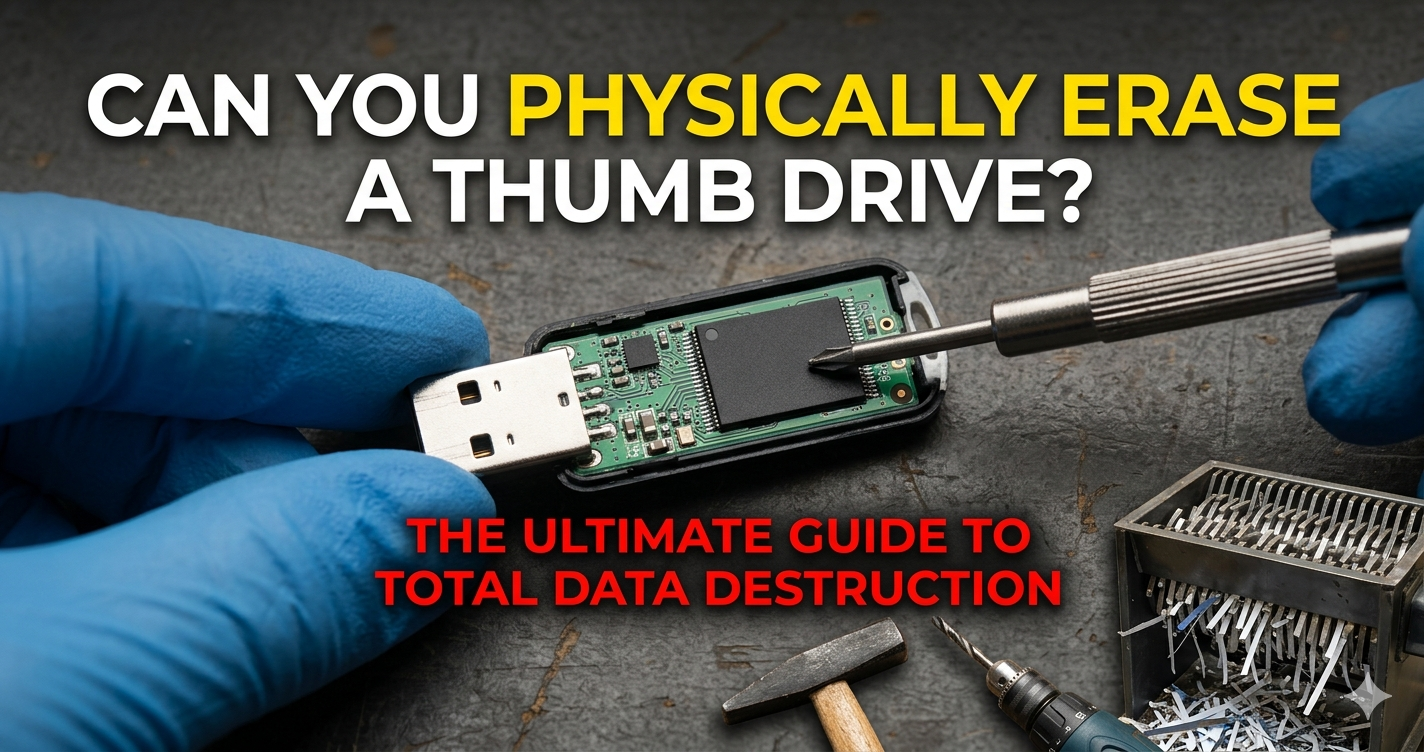
- Remove the Casing: Use a flathead screwdriver to pop open the plastic shell. You’ll see a green circuit board with a black rectangular chip. That chip is where the data lives.
- Target the NAND Chip: Don’t just break the USB connector. The connector is just a “bridge.” You need to destroy the black chip.
- Physical Force: Use a hammer to smash the black chip into pieces, or use a drill to put a hole directly through the center of that chip.
- Safety First: Always wear eye protection. Silicon shards are like glass.
Method 3: Incineration or Industrial Shredding
For high-security needs, some people use “degaussing,” but here is a pro-tip: Degaussers do not work on thumb drives. Degaussing uses magnets, and flash memory isn’t magnetic. You need an industrial SSD shredder that grinds the drive into particles smaller than 2mm.
Tools and Recommendations: The Pro’s Toolkit
As an SEO strategist who handles sensitive client data, I don’t leave things to chance. Here are the tools I actually use and recommend:
| Tool | Type | Price | Best For |
| Eraser (Windows) | Software | Free | Permanent file/drive wiping for daily use. |
| Disk Utility | Software | Built-in (Mac) | Reliable, multi-pass erasing for Apple users. |
| DBAN | Software | Free | Nuking an entire drive from a bootable level. |
| A Standard Drill | Physical | Varies | Guaranteed destruction for broken drives. |
| IronKey | Hardware | $$$ | Buying a drive that auto-destructs after 10 failed passwords. |
My Professional Recommendation
If you are a casual user, the built-in “Full Format” on Windows or the “Security Options” on Mac is more than enough. However, if you are handling “Company Secret” level data, don’t trust software. Spend the $15 on a new drive and take a hammer to the old one.
Common Mistakes and How to Fix Them
1. Thinking “Formatting” is “Erasing”
The Mistake: Most people right-click and hit “Format.”
The Fix: Realize that “Quick Format” only wipes the “address book” of the drive. Always select Full Format or use a third-party overwriting tool.
2. Using Magnets
The Mistake: People think a strong magnet will wipe a thumb drive like a floppy disk.
The Fix: It won’t. Flash memory is immune to standard magnets. Use physical destruction or software overwriting instead.
3. Forgetting the “Wear Leveling” Factor
The Mistake: Flash drives use a technology called “wear leveling” that moves data around to prevent the chips from wearing out. Sometimes, a software wipe might miss a “spare” block of data.
The Fix: To be 100% sure, fill the drive to maximum capacity with useless data (like 10GB of random cat videos) after you format it. This forces the drive to overwrite those hidden blocks.
Conclusion: Peace of Mind in a Digital World
So, can you physically erase a thumb drive? Absolutely. Whether you choose to overwrite the electrical charges using software or physically pulverize the silicon chips with a hammer, you have the power to make your data disappear.
In a world where our entire lives—from bank statements to private messages—live on these tiny pieces of plastic, knowing how to properly sanitize your hardware isn’t just a tech skill; it’s a form of personal insurance.
Next time you’re ready to toss a USB stick in the junk drawer, ask yourself: Is my data still on there? If you aren’t sure, take five minutes to perform a full format. Your future self will thank you.
Related Articles
The HP Laptop 14s-cf1xxx: A Real-World Deep Dive into This Resilient Workhorse
The No-Nonsense Guide to USB 3.2 Gen 2: Navigating the Chaos of USB Three Speed
Frequently Asked Questions
Does putting a thumb drive in water erase it?
No. Water may short-circuit the electronics, but the data stored on the NAND chip remains intact. Once the chip dries out, a specialist could easily recover the data.
Can I reuse a thumb drive after a physical software wipe?
Yes! If you use software like Eraser or a Mac’s Security Erase, the drive is perfectly healthy and ready for new files. Only physical destruction (smashing/drilling) makes it unusable.
Is “Zero Filling” the same as erasing?
Yes. Zero filling is a method where the software writes a $0$ to every single bit of the drive. For 99.9% of users, this is equivalent to a permanent physical erase.
How many times should I overwrite a drive to be safe?
For modern flash drives, a single “Zero Pass” is usually enough. However, the Department of Defense (DoD) standard often suggests 3 or 7 passes for absolute certainty.
Can a thumb drive be erased by a microwave?
Technically, yes, it will destroy the chips, but do not do this. It is extremely dangerous, can cause a fire, and releases toxic fumes. Stick to a hammer or a drill.

Emily Carter is a tech enthusiast who writes about PC cooling, hardware performance, and system optimization. She enjoys simplifying complex topics and helping readers make better tech decisions.