
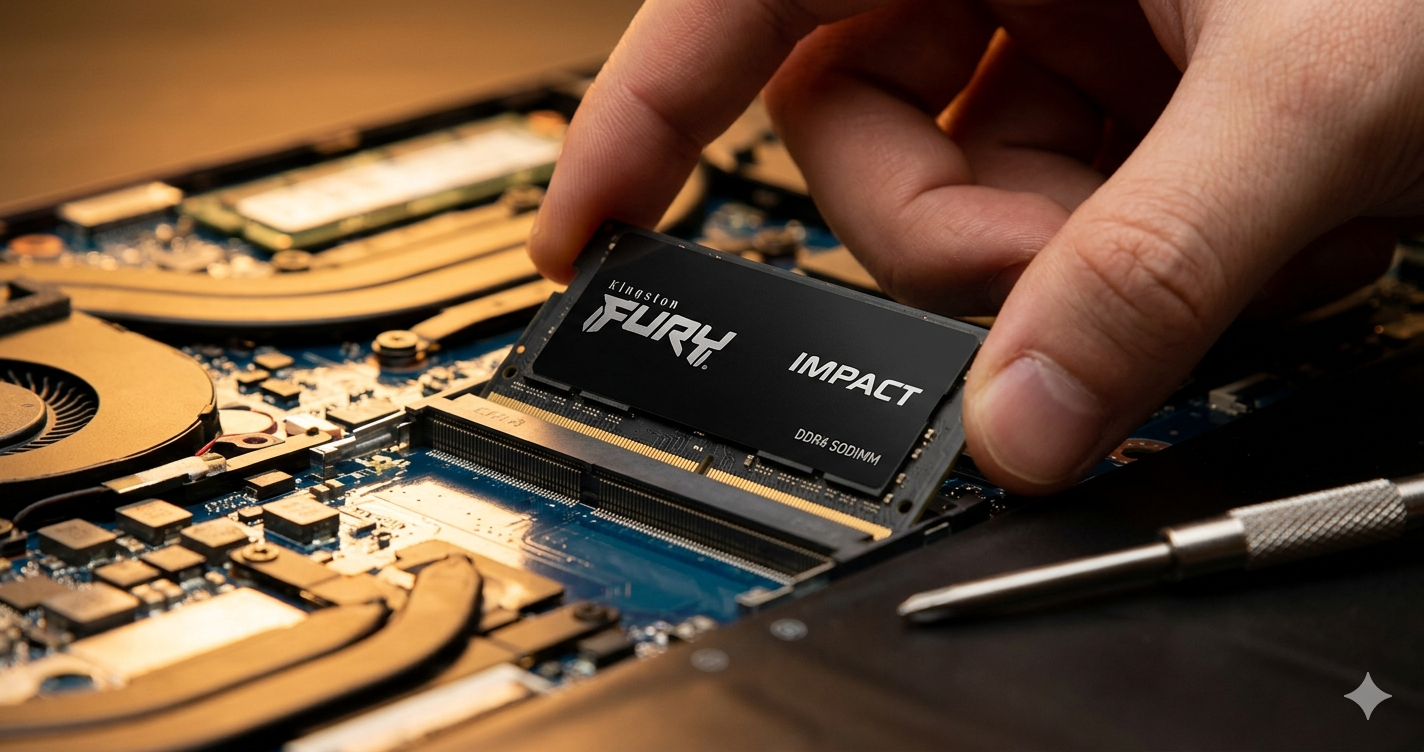
I still remember the first time I cracked open a high-end gaming laptop only to realize it was “choking” on 8GB of factory-installed memory. The processor was a beast, the GPU was capable, but every time I opened more than three Chrome tabs while running a game, the system would stutter like a scratched CD.
That was my introduction to the world of aftermarket memory upgrades, and specifically, to the Fury RAM SODIMM line.
If you’ve ever felt your laptop “struggling for air” during heavy workloads, you aren’t alone. Most manufacturers cut corners on the one component that is the easiest for you to fix. Today, we’re diving deep into why this specific memory module is the gold standard for enthusiasts and how it can fundamentally change your computing experience. You’ll learn how to pick the right speed, how to install it without breaking anything, and why your laptop’s “factory” settings might be holding you back.
What Exactly is Fury RAM SODIMM? (The “Simple” Breakdown)
To understand what Fury RAM SODIMM is, we have to break down the tech-heavy name into something more digestible.
SODIMM stands for Small Outline Dual In-Line Memory Module. In plain English? It’s the “laptop-sized” version of RAM. While desktop computers use long, thin sticks, laptops need something more compact to fit into those tight chassis.
Fury is the performance-oriented sub-brand (formerly under HyperX, now part of Kingston). Think of it like the “Sport” or “Turbo” badge on a car. Standard RAM is designed to get you from point A to point B reliably. Fury RAM is designed to get you there faster, with better heat management and “Plug N Play” overclocking capabilities.
The Brain-to-Desk Analogy
Imagine your laptop’s processor is a high-speed chef. The storage (SSD) is the pantry where all the ingredients are kept. The Fury RAM SODIMM is the kitchen counter.
If you have a tiny counter (low RAM), the chef has to keep running back to the pantry for every single onion and tomato, which slows down the cooking. If you have a massive, high-speed counter, the chef can lay out everything at once and work at lightning speed. Fury RAM doesn’t just give you a bigger counter; it gives you a smoother surface that allows the chef to slide ingredients around without friction.
The Real-World Benefits of Upgrading
When I talk to clients about upgrading to Fury RAM SODIMM, they usually ask: “Will I actually notice the difference?” The answer is a resounding yes, but the “where” depends on what you do.
1. The Death of the “Alt-Tab” Lag
We’ve all been there. You’re playing a game or editing a video, and you need to quickly check a Discord message or a tutorial. On standard RAM, that transition often involves a black screen or a three-second freeze. Because Fury modules often feature lower latency (the time it takes for the RAM to respond to a command), these transitions become nearly instantaneous.
2. Modern Gaming and Creative Work
Games like Cyberpunk 2077 or Microsoft Flight Simulator don’t just want RAM; they want fast RAM. Fury modules often come with automatic overclocking features. This means the RAM talks to your laptop and says, “Hey, I can actually run faster than your default settings,” and adjusts itself. For video editors using Adobe Premiere or DaVinci Resolve, this means smoother playback in your timeline and faster rendering speeds.
Who is this for?
- Gamers: Especially those on mid-range laptops looking for a “Pro” feel.
- Content Creators: If you handle 4K video or heavy RAW photo batches.
- The “Power User”: Anyone who refuses to close their 50+ browser tabs.
Who should skip it?
If you only use your laptop for Netflix and checking emails, you likely won’t see the ROI. Standard RAM is perfectly fine for basic consumption.
Step-by-Step: How to Install Fury RAM SODIMM
Upgrading your RAM is arguably the easiest hardware modification you can perform. You don’t need a degree in computer science—just a steady hand and a small screwdriver.
Step 1: Verification
Before buying, check your laptop’s manual or use a tool like Crucial’s System Scanner to ensure your laptop isn’t “soldered.” Some modern ultra-thin laptops have RAM soldered to the motherboard, meaning you can’t upgrade it. If you see two slots, you’re good to go.
Step 2: Preparation
Power down completely. Unplug the charger. If your laptop has a removable battery, take it out. Pro Tip: Touch a metal object (like a radiator or a desk leg) to discharge any static electricity from your body. Static is the silent killer of PC components.
Step 3: Opening the Chassis
Undo the screws on the bottom of your laptop. Keep them in a bowl—they are notoriously easy to lose! Use a plastic pry tool (or a guitar pick) to gently pop the clips around the edges.
Step 4: Out with the Old, In with the New
Locate the existing RAM. You’ll see two small metal clips on the sides. Push them outward, and the RAM stick will pop up at a 30-degree angle. Pull it out gently. Slide your new Fury RAM SODIMM into the slot at that same 30-degree angle, then press down until the clips click into place.
Step 5: The Boot Test
Put the cover back on (don’t screw it in yet!), and turn the laptop on. It might take a few seconds longer than usual to boot the first time as the BIOS recognizes the new memory. Check your “Task Manager” in Windows to ensure the full capacity and speed are showing.
Comparisons: Fury vs. The Competition
When shopping for Fury RAM SODIMM, you’ll likely see other brands like Corsair Vengeance or Crucial. Here is how they stack up based on my years of testing:
| Feature | Kingston FURY Impact | Corsair Vengeance | Crucial Standard |
| Best For | Automatic Overclocking | High-End Customization | Budget Reliability |
| Heat Spreader | Sleek, thin label | Sometimes bulky | Usually None |
| Plug N Play | Excellent (No BIOS tweaks) | Good | Basic |
| Price | Mid-to-High | High | Low |
My Take: I recommend Fury for laptop users specifically because of the Plug N Play (PnP) functionality. Most laptops have very “locked down” BIOS settings, meaning you can’t manually change RAM speeds. Fury modules are designed to automatically “handshake” with the system to reach their highest advertised speed without you having to touch a single setting.
Common Mistakes (And How to Avoid Them)
Even seasoned builders make mistakes. Here are the “gotchas” I see most often:
- Mixing Speeds: People often buy one stick of Fury RAM SODIMM (say, 3200MHz) and pair it with their old, slow factory stick (2400MHz). Your computer will always default to the slowest stick. Always buy a “Kit” of two identical sticks for the best performance.
- Ignoring Latency (CL): Everyone looks at the MHz (speed), but the CL (CAS Latency) is just as important. A 3200MHz CL20 stick is actually slower than a 3200MHz CL16 stick. Fury modules usually offer very competitive (low) latency.
- The “Half-Seat”: This is the #1 reason a laptop won’t turn on after an upgrade. If the RAM isn’t pushed all the way into the slot before you click it down, the pins won’t connect. If your laptop won’t boot, take the RAM out and put it back in—harder.
Final Thoughts
The Fury RAM SODIMM isn’t just a component; it’s an insurance policy against obsolescence. In a world where software gets hungrier for resources every year, increasing your “workspace” with high-quality memory is the single most cost-effective way to make an old laptop feel brand new or a new laptop feel like a supercar.
If you’re tired of waiting for programs to load or seeing your frame rates dip during intense firefights, it’s time to stop settling for factory defaults. Crack open that chassis, slide in some Fury, and let your laptop finally run at the speed it was meant to.
Have you ever upgraded your own RAM, or are you nervous about opening your laptop? Drop a comment below—I’d love to help you through the process!
FAQs About Fury RAM SODIMM
1. Will installing Fury RAM SODIMM void my warranty?
In most cases, no. Most manufacturers consider RAM and Storage “user-replaceable parts.” However, always check your specific brand’s policy. In the US, the Magnuson-Moss Warranty Act generally protects your right to upgrade hardware.
2. Do I need to go into the BIOS to set the speed?
One of the best features of Fury RAM SODIMM (specifically the Impact line) is its Plug N Play capability. It is designed to automatically overclock to the highest frequency allowed by the system BIOS without manual adjustment.
3. What is the difference between DDR4 and DDR5 Fury RAM?
They are physically different. You cannot put DDR5 RAM into a DDR4 slot. Always check your laptop’s CPU generation; Intel 12th Gen and newer or AMD Ryzen 6000 and newer typically support DDR5.
4. Why does my 3200MHz RAM show as 1600MHz in some apps?
Don’t panic! DDR stands for “Double Data Rate.” Some monitoring apps show the single rate. If you see 1600MHz, your RAM is effectively running at 3200MHz.
5. Can I use Fury RAM SODIMM in a Mac?
Only in older Intel-based MacBooks and iMacs that have accessible RAM slots. Modern “Apple Silicon” (M1, M2, M3) Macs have integrated memory that cannot be upgraded after purchase.
ALSO READ: Dell OptiPlex Guide (2026): Pick the Right Model Without Wasting Money

Emily Carter is a tech enthusiast who writes about PC cooling, hardware performance, and system optimization. She enjoys simplifying complex topics and helping readers make better tech decisions.