
I remember the first time I tried to back up a 50GB video project onto what I thought was a “fast” thumb drive. I plugged it in, walked away to grab a coffee, came back twenty minutes later, and saw that agonizing green progress bar barely at the halfway mark. I was furious. I had the right cable, the right port, and the right drive—or so I thought.
The truth? I had fallen victim to the absolute naming catastrophe that is modern USB standards. Specifically, I didn’t understand the nuances of USB 3.2 Gen 2, often colloquially (and confusingly) referred to by some as USB three speed tiers.
In today’s world, where we are moving 4K video, massive RAW photo libraries, and complex gaming installs, the “standard” USB speed just doesn’t cut it anymore. Understanding USB 3.2 Gen 2 isn’t just for tech geeks; it’s for anyone who values their time. In this guide, I’m going to strip away the marketing jargon and give you the boots-on-the-ground reality of how this technology works, why it’s the current “sweet spot” for performance, and how you can stop wasting hours waiting on progress bars.
What Exactly is USB 3.2 Gen 2? (The “USB Three Speed” Mystery)
To understand where we are, we have to look at the mess the USB Implementers Forum (USB-IF) made with naming. If you’re confused, it’s not you—it’s them.
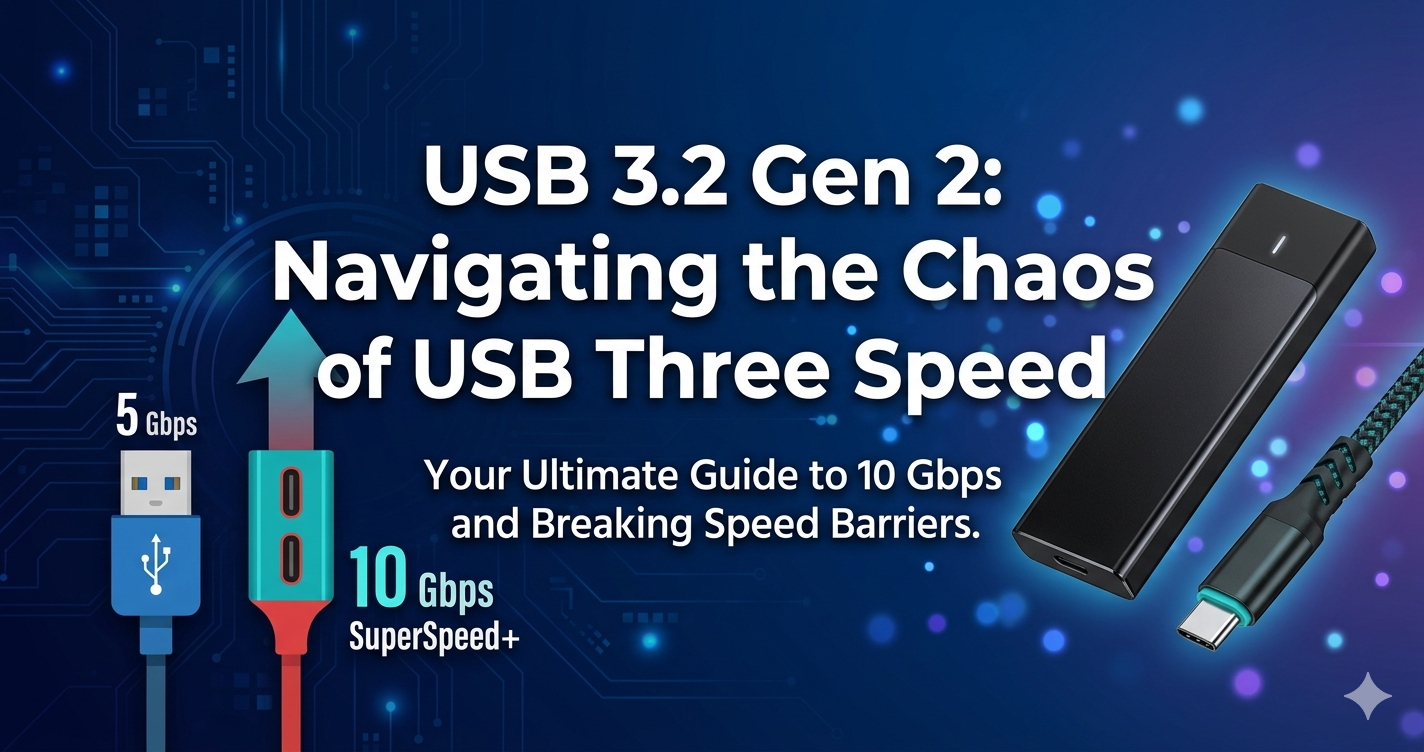
USB 3.2 Gen 2 is a specific signaling rate that offers a theoretical transfer speed of 10 Gbps (Gigabits per second). In the real world, after overhead, this translates to roughly 1.2 GB/s (Gigabytes per second).
Think of it this way:
- USB 2.0 is a narrow country road (480 Mbps).
- USB 3.2 Gen 1 (formerly USB 3.0) is a two-lane highway (5 Gbps).
- USB 3.2 Gen 2 is a four-lane “Super-Speed” expressway (10 Gbps).
When people search for USB three speed, they are usually trying to figure out which of the three main “USB 3” tiers they are actually getting. Currently, the “3.2” family is split into Gen 1 (5 Gbps), Gen 2 (10 Gbps), and Gen 2×2 (20 Gbps).
USB 3.2 Gen 2 is the most important one for most of us because it’s widely supported by modern laptops, motherboards, and external SSDs. It exists because the previous 5 Gbps standard became a bottleneck the moment NVMe storage went portable. If you have a high-end external drive but plug it into a Gen 1 port, you’re essentially driving a Ferrari in a school zone.
Real-World Benefits: Why You Actually Need 10 Gbps
You might be thinking, “Do I really need my Excel sheets to transfer that fast?” Probably not. But for several specific scenarios, USB 3.2 Gen 2 is a life-changer.
1. External SSD Performance
This is the biggest one. If you buy a popular external drive like the Samsung T7 or SanDisk Extreme, these drives are capable of speeds around 1,000 MB/s. To hit those speeds, you must use a USB 3.2 Gen 2 port. If you plug that drive into an older USB 3.0 (Gen 1) port, your speed will be cut exactly in half. I’ve seen professionals lose hours of productivity over a week simply because they were using the wrong port on their workstation.
2. Content Creation and 4K Video
If you are editing video directly off an external drive (a common practice for Mac and laptop users), the “USB three speed” matters immensely. 10 Gbps provides enough bandwidth to scrub through 4K timeline footage without the stuttering or “dropped frames” that plague slower connections.
3. Modern Docking Stations
If you use a USB-C dock to connect a monitor, mouse, keyboard, and an ethernet cable all through one wire, that single wire needs a massive amount of “pipe” to carry all that data. USB 3.2 Gen 2 provides the headroom to ensure your mouse doesn’t lag while you’re downloading a large file.
Expert Tip: Just because a connector is USB-C (the small, oval one) does NOT mean it is 10 Gbps. USB-C is just the shape of the hole. The “brains” behind the hole could be slow USB 2.0 or blazing fast Thunderbolt. Always look for the “10” logo or the “SuperSpeed+” label.
How to Set Up Your Gear for Maximum Speed (Step-by-Step)
Getting USB 3.2 Gen 2 speeds isn’t always “plug and play.” Often, the hardware is capable, but the configuration is wrong. Here is my proven process for ensuring you’re getting the full 10 Gbps.
Step 1: Audit Your Ports
Look at your computer’s I/O. On a desktop, the Gen 2 ports are often Red or Light Blue, or labeled with a “10” icon. On laptops, check your manual. Not all USB-C ports are created equal; usually, only one or two support the full Gen 2 speeds.
Step 2: Verify Your Cable (The Silent Killer)
This is where 90% of people fail. You cannot use a random charging cable that came with your phone. Most phone charging cables are wired for USB 2.0 data speeds (480 Mbps). You need a cable specifically rated for 10 Gbps.
Step 3: Check Device Compatibility
If you are plugging in a mechanical hard drive (the ones that spin), USB 3.2 Gen 2 won’t help you. A spinning drive maxes out at about 160 MB/s. You only see the benefit of “USB three speed” Gen 2 when using SSDs or RAID arrays.
Step 4: Update Your Drivers
On Windows, go to Device Manager and ensure your “USB Root Hub” and “Extensible Host Controller” drivers are up to date. Sometimes, generic Windows drivers cap speeds to ensure stability, especially on older AMD or Intel motherboards.
Comparison: USB 3.2 Gen 2 vs. The Alternatives
Choosing the right tech often involves a trade-off between price and performance. Here is how USB 3.2 Gen 2 stacks up against its siblings.
| Feature | USB 3.2 Gen 1 | USB 3.2 Gen 2 | USB 3.2 Gen 2×2 | Thunderbolt 3/4 |
| Marketing Name | SuperSpeed | SuperSpeed+ | SuperSpeed 20Gbps | Thunderbolt |
| Max Speed | 5 Gbps | 10 Gbps | 20 Gbps | 40 Gbps |
| Common Color | Blue | Red / Teal | N/A (USB-C only) | N/A (Lightning bolt icon) |
| Best For | Mice, Keyboards, HDDs | External SSDs, Docks | Niche Pro Workflows | High-end Video, eGPUs |
Why I recommend Gen 2 over Gen 2×2
You might see “Gen 2×2” and think, “More is better!” While true, Gen 2×2 is a bit of an odd duck. It requires a specific type of USB-C to USB-C connection and is not supported by Apple’s Mac lineup. USB 3.2 Gen 2 (10 Gbps) is the “universal” high speed that works on almost every modern device, including the iPhone 15 Pro, latest iPads, and Windows PCs.
Common Mistakes: Why Am I Still Getting Slow Speeds?
I’ve spent a decade troubleshooting tech, and when it comes to USB three speed issues, the culprits are usually the same.
- The “Front Panel” Trap: Many PC builders plug their fast drives into the USB ports on the front of their computer case. Often, those front ports are connected to the motherboard via cheap, unshielded cables that can’t maintain 10 Gbps signals. The Fix: Always plug high-speed drives directly into the motherboard ports on the back of the PC.
- Daisy Chaining: If you plug a Gen 2 drive into a Gen 1 hub, and then the hub into a Gen 2 port, your speed is capped at Gen 1. The chain is only as strong as its weakest link.
- Heat Throttling: High-speed data transfer generates heat. If your external SSD gets too hot, it will automatically slow down to 5 Gbps or even lower to protect the hardware. The Fix: Ensure your drive has some breathing room; don’t bury it under papers or leave it in a hot car.
Conclusion: Mastering Your Data Flow
USB 3.2 Gen 2 is effectively the modern standard for anyone who wants high performance without the extreme price tag of Thunderbolt. By understanding the “USB three speed” landscape, you can make smarter buying decisions. Don’t settle for “standard” blue ports if you’re a photographer or gamer; look for that 10 Gbps rating.
The next time you’re buying an external drive or a new laptop, ignore the flashy marketing and look for the specific generation. Your future self—the one not staring at a slow progress bar—will thank you.
What’s your current setup? Have you noticed a jump in speed switching to Gen 2? Let’s chat in the comments below—I’d love to hear your “slow data” horror stories!
FAQs About USB 3.2 Gen 2
1. Is USB 3.2 Gen 2 the same as USB 3.1?
Essentially, yes. USB 3.1 Gen 2 was renamed to USB 3.2 Gen 2. It’s the same 10 Gbps technology, just with a more confusing name courtesy of the USB-IF.
2. Can I use a USB 3.2 Gen 2 drive in a USB 2.0 port?
Yes, USB is backwards compatible. However, it will be painfully slow. You will be limited to about 40 MB/s, which is 1/25th of the drive’s actual potential.
3. Does the cable length matter for 10 Gbps speeds?
Absolutely. For USB 3.2 Gen 2, the signal starts to degrade if the cable is longer than 1 meter (about 3 feet). If you need a longer cable, you’ll need an “active” cable, which contains a chip to boost the signal.
4. How can I tell if my Windows PC has 10 Gbps ports?
Right-click the Start button, select Device Manager, and expand Universal Serial Bus controllers. Look for terms like “USB 3.10” or “Enhanced” or “10Gbps”. You can also check the color coding on the ports themselves.
5. Does USB 3.2 Gen 2 support video output?
The speed standard itself (10 Gbps) doesn’t dictate video. However, most USB-C ports that support Gen 2 also support “DisplayPort Alt Mode,” allowing you to run a monitor through the cable. Check your device’s specific specs to be sure.
Is there a specific device you’re trying to connect that seems slower than it should be?
ALSO READ: Dell OptiPlex Guide (2026): Pick the Right Model Without Wasting Money

Emily Carter is a tech enthusiast who writes about PC cooling, hardware performance, and system optimization. She enjoys simplifying complex topics and helping readers make better tech decisions.