
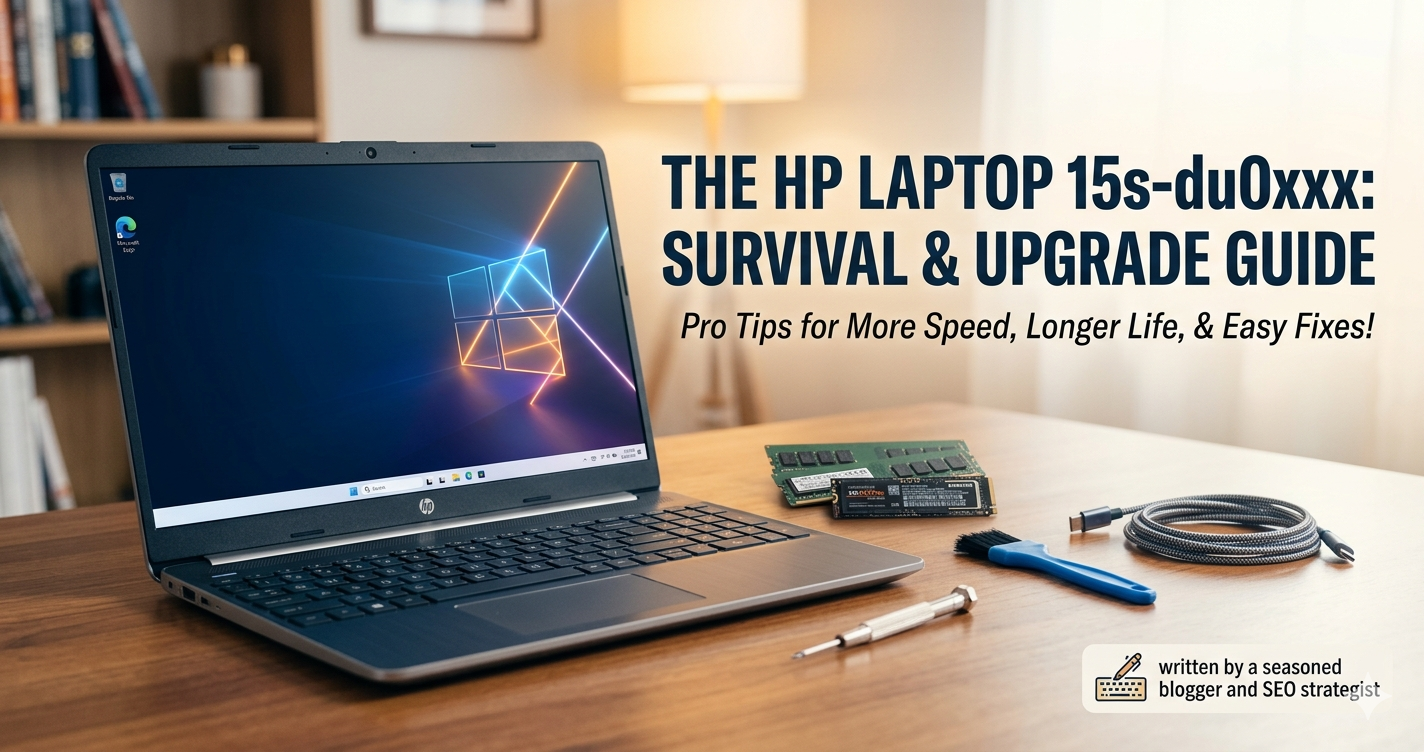
I still remember the first time a client handed me an HP Laptop 15s-du0xxx. It was sluggish, the fan sounded like a jet engine taking off, and the owner was ready to toss it out the window. As someone who has spent over a decade tearing down laptops and optimizing them for peak performance, I knew better. Beneath that modest plastic chassis lies one of the most reliable “workhorse” machines of the early 2020s—if you know how to treat it.
The HP Laptop 15s-du0xxx isn’t a flashy gaming rig or a high-end workstation. It’s the quintessential “everyman” laptop. Whether you’re a student, a freelance writer, or someone managing a small business, this model has likely crossed your path. However, in 2026, many of these units are starting to show their age. Today, I’m going to share my years of hands-on experience with this specific series to help you understand what you’re working with, how to fix its common quirks, and how to breathe new life into it so it runs better than the day you unboxed it.
Understanding the HP Laptop 15s-du0xxx: What’s Under the Hood?
When we talk about the HP Laptop 15s-du0xxx, the “xxx” acts as a wildcard. This series covers a range of configurations—from basic Intel Celeron processors to much more capable Core i3, i5, and even i7 chips. Think of it like a car model that comes in different trim levels; the frame is the same, but the engine varies.
Essentially, this laptop is designed for portability and productivity. It features a slim bezel (which HP calls “Micro-edge”) and a 15.6-inch display, making it light enough to carry to a coffee shop but large enough to handle a massive Excel spreadsheet without squinting.
The “S” Stands for Slim
The “s” in 15s signifies the slimmed-down design. Unlike the older, bulkier HP Power Pavilions, this model ditched the internal DVD drive to save weight and thickness. It relies on a combination of plastic and metallic finishes, giving it a professional look that punches slightly above its weight class in terms of aesthetics.
Why This Model Exists
HP built this series to dominate the mid-range market. It’s for the person who needs a reliable Windows environment without paying the “premium tax” of an HP Spectre or an Apple MacBook. It’s common in corporate fleets and university bookstores because it strikes a balance between cost-efficiency and functional power.
Real-World Benefits: Why People Still Love the 15s-du0xxx
After working with dozens of these units, I’ve noticed they occupy a “sweet spot” for several types of users. It’s not just about the specs on a sheet; it’s about how the machine feels when you’re actually trying to get work done.
1. Exceptional Keyboard for Long-Form Writing
As a professional blogger, I’m picky about keyboards. The 15s-du0xxx features a full-sized keyboard, including a numeric keypad. The key travel is surprisingly tactile. It’s not “mushy” like many budget laptops. If you are a data entry professional or a writer, this machine is a dream for high-volume typing.
2. Fast Charging (HP Fast Charge)
One of the most practical features I’ve tested is the Fast Charge capability. In my experience, you can get from 0% to 50% in about 45 minutes. This is a lifesaver when you realize your laptop is dead and you have a meeting starting in an hour.
3. Port Versatility
In an era where many laptops are removing ports to be “minimalist,” the 15s-du0xxx remains practical. You get:
- USB Type-C: For modern peripherals.
- Two USB Type-A ports: For your mouse and thumb drives.
- HDMI: For easy presentations.
- SD Card Reader: A godsend for photographers and content creators.
Who is this for?
- Students: Perfect for research, Zoom calls, and writing papers.
- Remote Workers: Handles Slack, Trello, and multiple Chrome tabs with ease (provided you have enough RAM).
- Casual Users: Great for Netflix, social media, and light photo editing.
Who should avoid it?
- Hardcore Gamers: Without a dedicated GPU, you won’t be playing Cyberpunk 2077 on this.
- 4K Video Editors: The rendering times will be frustratingly slow.
Related Articles
The HP Laptop 14s-cf1xxx: A Real-World Deep Dive into This Resilient Workhorse
The No-Nonsense Guide to USB 3.2 Gen 2: Navigating the Chaos of USB Three Speed
Step-by-Step Guide: Optimizing Your HP 15s-du0xxx for Speed
If your laptop feels slow, don’t buy a new one yet. Follow this professional optimization checklist that I use for every client machine.
Step 1: The RAM Reality Check
Most HP Laptop 15s-du0xxx units shipped with 4GB or 8GB of RAM. In 2026, 4GB is barely enough to run Windows itself.
- The Fix: Open Task Manager (Ctrl + Shift + Esc). If your “Memory” usage is constantly above 80%, you need an upgrade. This model usually has two SODIMM slots. Upgrading to 16GB is the single best thing you can do for this machine.
Step 2: Clean the Cooling System
Because this laptop is slim, it can trap heat.
- The Action: Use a can of compressed air to blow out the vents located at the bottom and the hinge area. If you’re comfortable, unscrew the bottom panel and gently clean the small internal fan with a soft brush. Dust is the silent killer of performance.
Step 3: Debloat Windows
HP often pre-installs “bloatware”—software you didn’t ask for and don’t need.
- The Action: Go to Settings > Apps and uninstall things like HP JumpStart, WildTangent Games, and any third-party antivirus trials that have expired. Use the built-in Windows Defender instead; it’s lighter and just as effective.
Step 4: Update the BIOS
I’ve seen many 15s-du0xxx models suffer from weird battery or WiFi issues that were solved simply by a BIOS update.
- The Action: Go to the official HP Support website, enter your specific serial number, and download the latest “BIOS-System Firmware.” Follow the instructions strictly—keep the laptop plugged in during this process!
Tools, Comparisons & My Expert Recommendations
When it comes to maintaining or upgrading this specific model, not all parts and software are created equal. Here is my “Pro Toolkit” for the HP 15s series.
| Component / Tool | Recommendation | Why? |
|---|---|---|
| RAM Upgrade | Crucial DDR4 3200MHz | High compatibility with HP motherboards and very stable. |
| Storage Upgrade | Samsung 970 EVO Plus (NVMe) | If your model has an M.2 slot, this will make the laptop boot in under 10 seconds. |
| Thermal Paste | Arctic MX-4 | If you’re doing a deep clean, replacing the factory paste with this drops temps by 5-10°C. |
| OS Maintenance | BleachBit | A free, open-source alternative to CCleaner that is much safer and more thorough. |
Export to Sheets
Free vs. Paid Upgrades
- Free: Adjusting your “Power Plan” to “Best Performance” and disabling startup apps. This costs $0 and can give you a 10% perceived speed boost.
- Paid ($50-$100): Adding an extra 8GB of RAM and a 500GB SSD. This is a “night and day” difference. If you have a mechanical HDD, an SSD upgrade is mandatory in 2026.
Common Mistakes & How to Fix Them
Over the years, I’ve seen users make the same three mistakes with the HP Laptop 15s-du0xxx. Avoid these to keep your machine running for another five years.
1. Using the Laptop on Soft Surfaces
The intake vents for this model are on the bottom. When you put it on a bed or a pillow, you choke the laptop. It overheats, and the CPU “throttles” (slows down) to protect itself.
- The Fix: Always use it on a hard, flat surface. If you must use it in bed, get a cheap laptop cooling pad or even a large hardcover book to act as a base.
2. Ignoring Battery Calibration
Do you find that your battery drops from 30% to 5% instantly? That’s a calibration error.
- The Fix: Let the battery drain until the laptop dies. Then, charge it to 100% without interruption while the laptop is turned off. This “resets” the battery’s internal sensor.
3. Closing the Lid While It’s Hot
Many people finish a heavy task and immediately slam the lid shut. On the 15s-du0xxx, the heat escapes near the hinge. Closing the lid traps that heat against the screen.
- The Fix: Let the fans spin down for 60 seconds after a heavy session before closing the lid. Your screen’s pixels will thank you.
Conclusion: Is the HP Laptop 15s-du0xxx Still Worth It?
Absolutely. While the HP Laptop 15s-du0xxx might not be a “flagship” device, it is a testament to functional engineering. Its longevity comes down to its upgradability and its straightforward design. In an era of glued-shut laptops, being able to pop the bottom off this machine and swap the RAM or the SSD is a luxury that makes it a sustainable choice.
By following the optimization steps and avoiding common pitfalls like thermal choking, you can keep this laptop snappy and productive. It’s a reliable partner for anyone who values “getting things done” over having the latest tech status symbol.
What do you think? Have you upgraded your 15s-du0xxx lately, or are you struggling with a specific error code? Drop a comment below—I’m always happy to troubleshoot with a fellow HP user!
Frequently Asked Questions (FAQs)
1. Can I play games on the HP Laptop 15s-du0xxx?
You can play casual games like Minecraft, Roblox, or League of Legends on low-to-medium settings. However, since it lacks a dedicated graphics card, it is not suitable for modern AAA titles.
2. Does the HP Laptop 15s-du0xxx support Windows 11?
Yes, most models in this series come with 8th Gen Intel processors or newer, which meet the official requirements for Windows 11. I recommend at least 8GB of RAM for a smooth Windows 11 experience.
3. How do I find my specific model number?
Look at the bottom of the laptop for a small sticker. You can also press Fn + Esc on the keyboard to bring up the “HP System Information” window, which will display the exact product name and number.
4. Can I upgrade the processor in this laptop?
No. Like almost all modern slim laptops, the CPU in the HP Laptop 15s-du0xxx is soldered to the motherboard. To get a better processor, you would need to replace the entire motherboard or the laptop itself.
5. Why is my HP Laptop 15s-du0xxx fan so loud?
This is usually caused by dust buildup or high CPU usage from background apps. Clean the vents with compressed air and use the “Task Manager” to see if a specific program is hogging your resources.
6. What is the maximum RAM supported?
Most variants of the HP Laptop 15s-du0xxx support up to 32GB of DDR4 RAM (two 16GB sticks). Even if the manual says 16GB, the chipset usually handles 32GB without an issue.
7. Does it have a backlit keyboard?
This is optional for this series. Some “du0xxx” models have it, and others don’t. If your F5 or F11 key has a small keyboard icon, you can toggle the backlight on and off.

Emily Carter is a tech enthusiast who writes about PC cooling, hardware performance, and system optimization. She enjoys simplifying complex topics and helping readers make better tech decisions.