
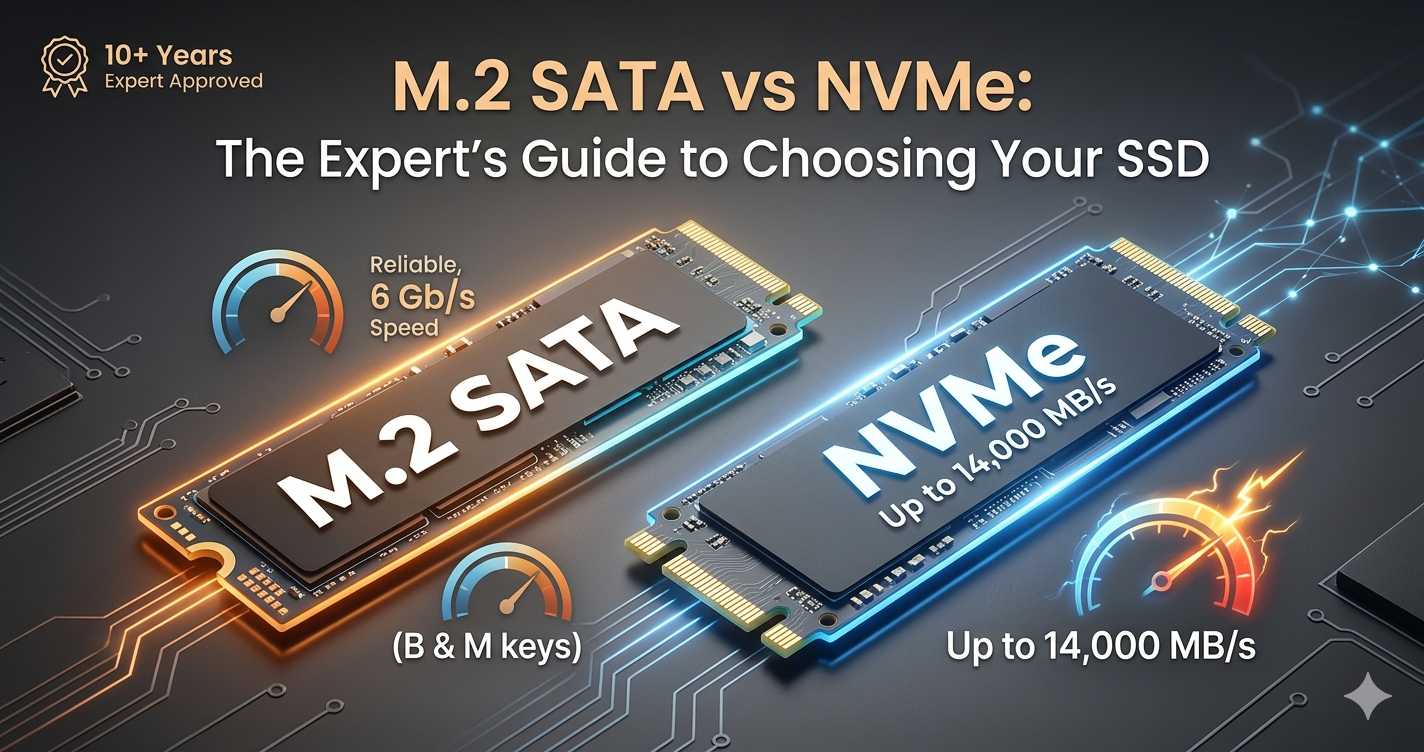
If you’ve ever opened up a laptop or looked at a modern motherboard, you’ve seen them: those slim, gum-stick-shaped sticks of storage known as M.2 drives. But here’s where the confusion starts. You go to buy one, and you’re hit with two terms that look identical but perform worlds apart: m.2 sata and nvme.
I’ve been building PCs and optimizing servers for over a decade, and I still remember the first time I accidentally bought an M.2 SATA drive for a slot that only supported NVMe. It’s a frustrating, “square peg, round hole” moment that I want to help you avoid.
In this guide, we’re going to settle the nvme vs sata debate once and for all. By the time you’re done reading, you’ll know exactly which drive fits your computer, which one fits your budget, and—most importantly—which one will actually make your computer feel faster.
What Exactly is M.2 SATA and NVMe? (The Simple Breakdown)
To understand the difference, we have to separate the shape of the drive from the language it speaks.
The “M.2” Part: It’s Just the Shape
Think of “M.2” as the physical form factor. It’s like saying “AA battery.” It tells you the size and the shape, but it doesn’t tell you what’s inside. Both m.2 sata and nvme drives use the M.2 shape. They are small, light, and plug directly into the motherboard without any messy cables.
The “SATA” Part: The Old Reliable
SATA (Serial ATA) is a legacy language. It was originally designed back in the early 2000s for mechanical hard drives with spinning platters. Because it was built for slow, physical disks, it has a speed limit—a “speed ceiling” of about 600 MB/s.
The “NVMe” Part: The Speed Demon
NVMe stands for Non-Volatile Memory Express. Unlike SATA, NVMe was built from the ground up specifically for high-speed flash memory. It doesn’t use the old “hard drive” lanes; it travels on the PCIe (Peripheral Component Interconnect Express) highway—the same ultra-fast lanes your graphics card uses. In 2026, the latest NVMe Gen 5 drives are hitting speeds upwards of 14,000 MB/s.
The Analogy: Imagine two cars. Both are the same size (M.2).
- The M.2 SATA drive is a golf cart on a crowded suburban street. It’s reliable and gets you there, but it can only go so fast.
- The NVMe drive is a Formula 1 car on an open Autobahn. It’s built for raw, unadulterated speed.
Benefits & Real-World Use Cases: Does the Speed Matter?
You might look at those numbers—600 MB/s vs. 14,000 MB/s—and think, “Why would anyone ever buy SATA?” But the truth is, raw speed isn’t everything. It depends on what you’re doing.
When to Choose NVMe (The Performance Play)
NVMe is the gold standard for 2026. If you are building a new PC today, this is almost certainly what you want.
- Video Editing & Content Creation: If you’re scrubbing through 4K or 8K video timelines, NVMe is a must. It prevents the “stutter” you feel when the software is waiting for the drive to catch up.
- Gaming: With technologies like DirectStorage becoming standard in 2026, games can load assets directly from the SSD to the GPU. This means near-instant load times and more seamless open worlds.
- Heavy Multitasking: If you’re the person with 100 Chrome tabs, Discord, a game, and a stream running at once, NVMe handles that “data traffic jam” much better than SATA.
When to Choose M.2 SATA (The Budget & Compatibility Play)
M.2 SATA is slowly becoming a “niche” product, but it still has its place.
- Reviving Older Laptops: Many laptops from 2017–2020 have an M.2 slot that only supports SATA. If you put an NVMe drive in there, it won’t even show up in the BIOS.
- Secondary Storage: If you need a cheap 4TB drive just to store photos, movies, or documents, a SATA drive is often cheaper and plenty fast for those tasks.
- Office Work: If your day consists of Word docs, emails, and Zoom calls, you literally will not notice the difference between SATA and NVMe. Your brain can’t process a 0.2-second boot difference.
Expert Tip: If your motherboard supports NVMe, buy NVMe. In 2026, the price gap has shrunk so much that saving $10 to lose 90% of your potential speed usually isn’t worth it.
Step-by-Step Guide: How to Install and Identify Your M.2 Drive
Ready to upgrade? Before you grab your screwdriver, let’s make sure you don’t make a costly mistake.
Step 1: Check Your Compatibility (The “Key” Method)
Look at the gold connectors on the end of the drive.
- M.2 SATA drives usually have two notches (called “B” and “M” keys).
- NVMe drives usually have only one notch (the “M” key).
Check your motherboard manual! Most modern boards support both, but some budget or older boards are “SATA only” or “NVMe only.”
Step 2: Physical Installation
- Power Down: Turn off your PC and flip the switch on the Power Supply.
- Locate the Slot: It’s usually between the CPU and the first PCIe slot.
- The 30-Degree Angle: Insert the drive at a slight 30-degree angle. Don’t force it; it should click in smoothly.
- Secure the Screw: Push the drive down flat and secure it with the tiny M.2 screw (these are notoriously easy to lose—keep a magnetic tray handy!).
Step 3: Initialization (Windows)
A brand-new drive won’t show up in “This PC” immediately.
- Right-click the Start button and select Disk Management.
- A pop-up will ask you to “Initialize Disk.” Choose GPT.
- Right-click the “Unallocated Space” (the black bar) and select New Simple Volume. Follow the prompts to give it a drive letter (like D:).
Tools, Comparisons & My Top Recommendations for 2026
I’ve tested dozens of these. Here is how the market looks right now.
| Feature | M.2 SATA | NVMe (Gen 4) | NVMe (Gen 5) |
| Max Speed | ~560 MB/s | ~7,500 MB/s | ~14,500 MB/s |
| Common Use | Old Laptops, Bulk Storage | Gaming, OS Drive | Pro Video, AI Workloads |
| Heat Output | Very Low | Moderate | High (Needs Heatsink) |
| Price (per TB) | Lowest | Sweet Spot | Premium |
My Professional Picks:
- The Best All-Rounder: Samsung 990 PRO (NVMe Gen 4). It is incredibly reliable, and for 99% of people, Gen 5 is overkill.
- The Speed King: WD_BLACK SN8100. If you want the fastest possible speeds in 2026 and have a Gen 5 compatible motherboard, this is the one.
- The Budget Savior: Crucial P3. Technically a Gen 3 NVMe, but it’s often priced lower than SATA drives, making it a “no-brainer” for budget builds.
Common Mistakes & Easy Fixes
Even pros trip up sometimes. Here are the “Oh no” moments I see most often:
1. Buying a Gen 5 Drive for a Gen 3 Slot
The Mistake: Spending $300 on a 14,000 MB/s drive when your motherboard only supports 3,500 MB/s.
The Fix: It will still work (NVMe is backward compatible), but you’re throwing money away. Always match the “Generation” of your SSD to your Motherboard’s specs.
2. Forgetting the Heatsink on NVMe
The Mistake: Running a high-speed NVMe drive “naked” under a hot graphics card.
The Fix: NVMe drives (especially Gen 4 and 5) get hot. If they overheat, they “throttle” and slow down to SATA speeds anyway. Use the heatsink that came with your motherboard or buy a drive that includes one.
3. The “Missing Drive” Mystery
The Mistake: Installing an M.2 SATA drive into a slot that only supports NVMe (PCIe).
The Fix: If the drive doesn’t show up in the BIOS at all, check your manual. Some motherboards disable certain SATA ports when an M.2 SATA drive is plugged in, or the slot simply doesn’t support the SATA protocol.
Conclusion: Which One Wins?
In the battle of nvme vs sata, NVMe has clearly won the war. It’s faster, it’s the future of gaming, and the prices have dropped so much that m.2 sata is mostly a legacy option for older hardware.
Here is your final cheat sheet:
- Build a new PC? Get an NVMe Gen 4 or Gen 5.
- Upgrading a 5-year-old laptop? Check if it supports NVMe; if not, get an M.2 SATA.
- Need 8TB of cheap storage? SATA might still be your best friend.
Upgrading your storage is the single most “noticeable” upgrade you can give a computer. It makes everything feel snappy, responsive, and modern.
What are you currently running in your rig? Are you planning to make the jump to Gen 5 this year? Let me know in the comments below—I’d love to hear your experiences!
FAQs
1. Can I put an M.2 SATA drive in an NVMe slot?
It depends on the motherboard. Many “universal” M.2 slots support both, but some modern boards have dropped SATA support entirely. Check your motherboard manual for “Socket 3 (M Key) with SATA support.”
2. Is NVMe better for gaming than M.2 SATA?
Yes, significantly so in 2026. While older games might only load 1–2 seconds faster, modern titles using DirectStorage require the bandwidth of NVMe to function correctly and eliminate loading screens.
3. Does NVMe use more power than SATA?
Technically, yes, during active data transfers. However, because NVMe completes tasks much faster, it returns to a “sleep” state sooner, often making it more power-efficient overall for laptop battery life.
4. How do I know if my laptop supports NVMe?
The easiest way is to look up your laptop model + “specifications” online. Alternatively, open Device Manager in Windows, look under “Storage Controllers,” and see if “Standard NVM Express Controller” is listed.
5. Why is my NVMe drive not running at full speed?
This usually happens for two reasons: Either you have it in a PCIe slot that doesn’t have enough “lanes” (check your manual), or the drive is thermal throttling because it’s too hot. Ensure you have proper airflow and a heatsink!
ALSO READ: Dell OptiPlex Guide (2026): Pick the Right Model Without Wasting Money

Emily Carter is a tech enthusiast who writes about PC cooling, hardware performance, and system optimization. She enjoys simplifying complex topics and helping readers make better tech decisions.