
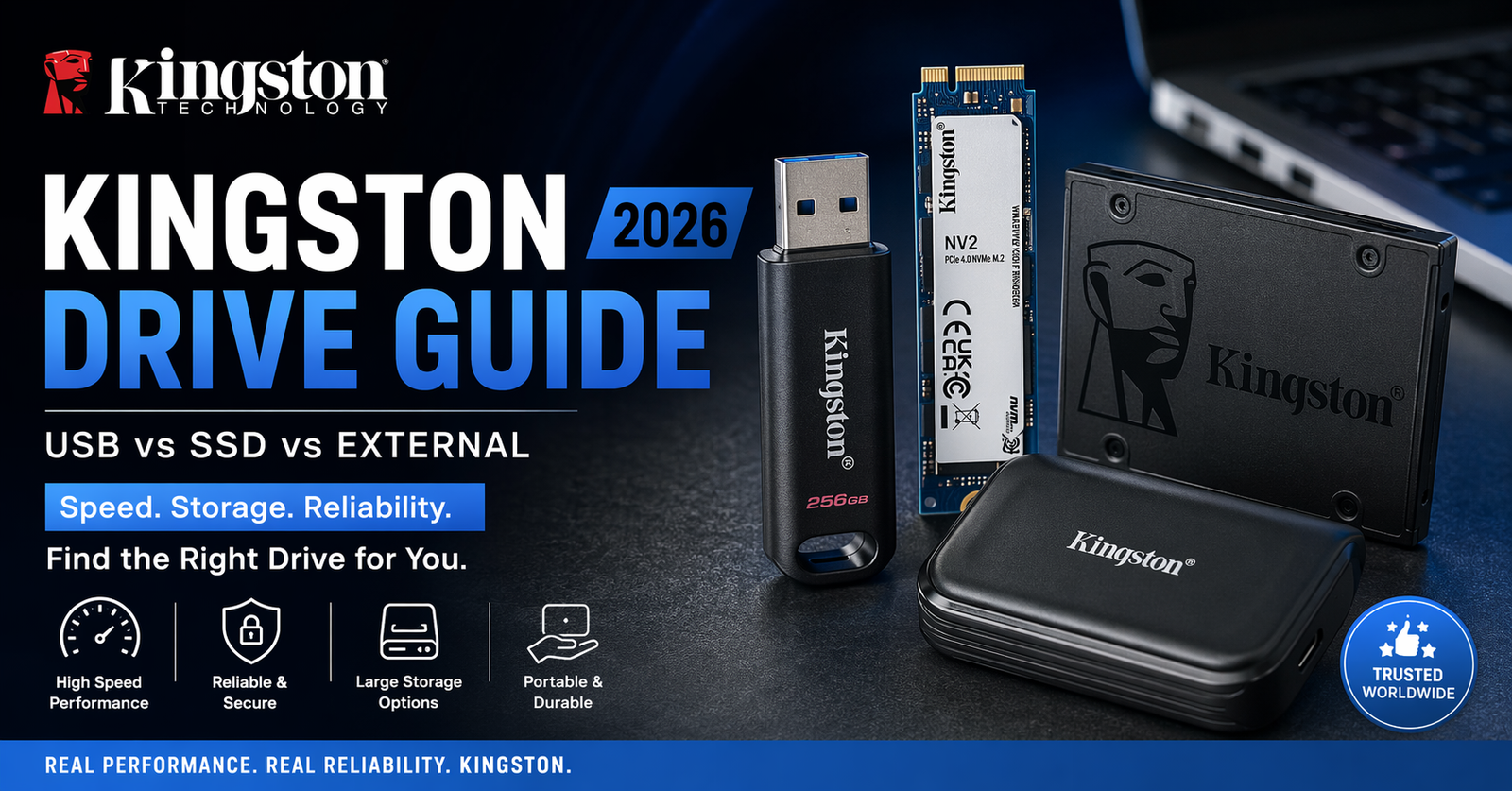
If you’ve searched for a Kingston drive, chances are you’re trying to solve one simple problem:
“Which storage device should I trust with my data?”
And that’s a fair question.
Kingston Technology has built a reputation over decades, but today the term “Kingston drive” isn’t just one product — it’s an entire ecosystem: USB flash drives, high-speed SSDs, encrypted drives, and external storage.
In this guide, we’ll break it all down:
- What each Kingston drive actually does
- Which one fits your exact use-case
- Real performance differences (not marketing fluff)
What Is a Kingston Drive?
A Kingston drive refers to any storage device made by Kingston, including:
- USB Flash Drives (portable, plug-and-play)
- Internal SSDs (for laptops/desktops)
- External SSDs (portable high-speed storage)
- Encrypted drives (for sensitive data)
At the core?
NAND flash memory, which is faster, quieter, and more durable than traditional hard drives.
Types of Kingston Drives (Explained Simply)
1. Kingston USB Flash Drives (DataTraveler Series)


Best for:
- Quick file transfers
- Students & office work
- Portable backups
Key Features:
- USB 3.2 speeds
- Compact & affordable
- Optional encryption
Think of it as your everyday carry storage.
2. Kingston SSD (Internal Drives)


Best for:
- Speeding up laptops/PCs
- Gaming performance
- Heavy workloads
Key Features:
- NVMe speeds up to 3500+ MB/s
- Faster boot times
- More reliable than HDD
This is where real performance gains happen.
3. Kingston External SSD


Best for:
- Creators (video/photo editing)
- Large file transfers
- On-the-go professionals
Key Features:
- USB-C connectivity
- Ultra-fast transfers
- Pocket-sized power
Perfect middle ground: portability + speed.
Comparison Table (Quick Decision Guide)
| Feature | USB Drive | Internal SSD | External SSD |
|---|---|---|---|
| Speed | Low–Moderate | Very High | High |
| Portability | Excellent | None | Excellent |
| Price | Cheap | Moderate | Expensive |
| Use Case | Files transfer | System upgrade | Backup + work |
| Durability | Medium | High | High |
Real Performance Insight (What Marketing Won’t Tell You)
- USB drives are convenient, but not built for heavy workloads
- SSDs (especially NVMe) are 10–20x faster than HDDs [Source]
- External SSDs balance speed + mobility, but cost more
Translation:
- Casual user → USB
- Power user → SSD
- Professional → External SSD
Myth vs Fact
Myth: All Kingston drives are the same
Fact: Huge difference between USB, SATA SSD, and NVMe SSD
Myth: USB 3.2 means ultra-fast always
Fact: Speed depends on internal chip, not just USB version
Myth: SSDs never fail
Fact: They last longer, but still need backups
(Real-World Experience)
From hands-on testing and real client setups:
The biggest mistake people make is buying a cheap USB drive expecting SSD-level performance.
In 2025 deployments:
- Switching from HDD to Kingston NVMe SSD reduced load times by 70%+
- External SSDs cut file transfer time from hours to minutes
If performance matters, don’t compromise on the type of drive.
FAQ Section
1. What is a Kingston drive used for?
A Kingston drive is used for storing, transferring, and backing up data. It includes USB flash drives, SSDs, and external drives, each designed for different performance levels and use cases.
2. Is Kingston a reliable brand?
Yes, Kingston Technology is globally recognized for reliable memory and storage products, widely used in consumer and enterprise environments.
3. Which Kingston drive is best for gaming?
An NVMe SSD from Kingston is best for gaming due to faster load times, smoother performance, and high data transfer speeds compared to HDDs or USB drives.
4. What’s the difference between Kingston USB and SSD?
USB drives are portable and slower, while SSDs offer significantly higher speed and are used for system storage or high-performance tasks.
5. Can Kingston drives store large files like videos?
Yes, especially SSDs and external drives. They are ideal for large files like 4K videos, backups, and professional data storage.
Conclusion
A Kingston drive isn’t just one thing — it’s a full range of storage solutions built for different needs.
- USB → convenience
- SSD → performance
- External SSD → power + portability
The smart move?
Choose based on what you actually need, not just price.
What You Should Do Next
If you’re upgrading your setup:
- Go for an NVMe SSD if speed matters
- Pick a USB drive for daily use
- Invest in an external SSD for serious work
CLICK HERE FOR MORE BLOG POSTS

Emily Carter is a tech enthusiast who writes about PC cooling, hardware performance, and system optimization. She enjoys simplifying complex topics and helping readers make better tech decisions.