
What Does “Ignore” Actually Do on Discord?
When you ignore someone on Discord, the platform makes that person effectively invisible to you — but only from your side. Here’s what changes the moment you hit Ignore:
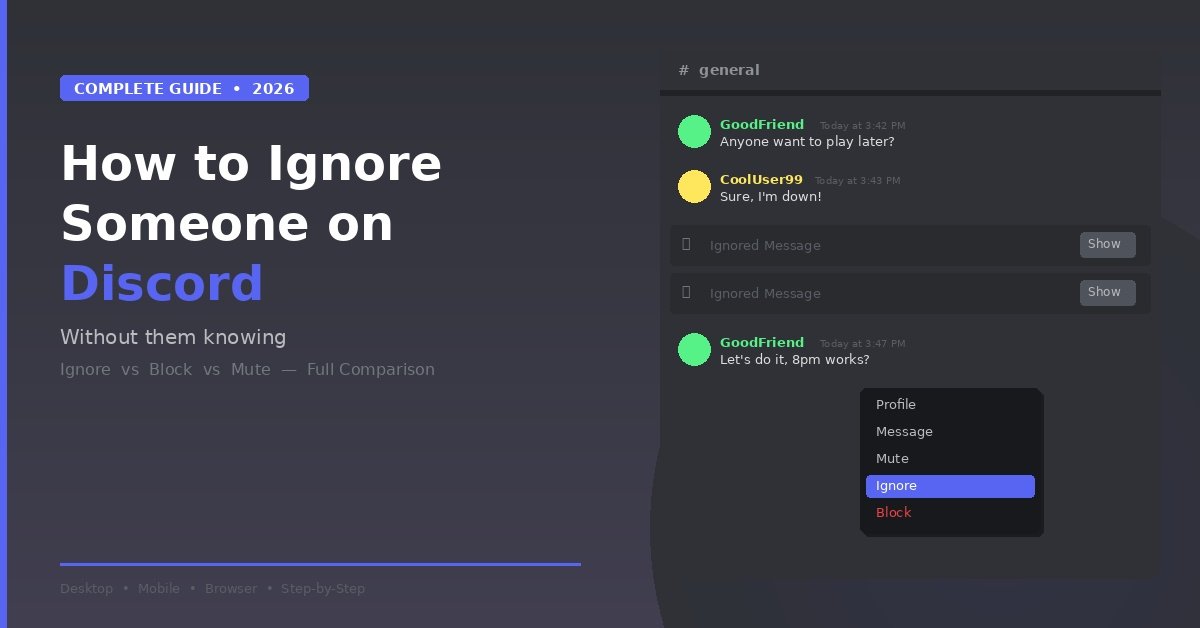
Messages get hidden. Their messages in DMs, group chats, and servers all disappear from your view. In DMs, their messages appear darkened with a small Ignore icon next to them. In servers and group chats, their messages show up as a collapsed “ignored message” placeholder. You can still choose to reveal any individual message by clicking “Show,” but you’ll never be forced to read anything they send.
Notifications stop. No more pings, no more DM alerts, no more notification badges from that user. Server message notifications from them are silenced. Your notification panel stays clean.
Profile access gets a warning screen. If you navigate to an ignored user’s profile, Discord puts up a warning screen first — a helpful reminder before you accidentally re-engage. Their profile also displays a “You ignored them” status visible only to you.
Voice and video calls come with a heads-up. If you’re about to join a voice or video call where an ignored user is already present, Discord warns you before you connect. You can decide whether to join or skip it.
They have no idea. This is the critical part. The ignored person receives zero notification that you’ve ignored them. They can still send you messages, view your profile, and interact normally with others in shared servers. From their perspective, nothing has changed — you’re just not responding.
How to Ignore Someone on Discord (Step-by-Step)
The process is nearly identical across platforms, with minor interface differences.
On Desktop or Browser
- Find the user you want to ignore — in a server, your friends list, a DM, or a group chat.
- Right-click on their avatar or username to open the context menu.
- Select Ignore from the dropdown.
- Confirm your choice by clicking Ignore in the pop-up window.
That’s it. Takes about three seconds.
On Mobile (iOS and Android)
- Tap the user’s avatar to open their profile card.
- Tap the three-dot menu (⋮) in the upper-right corner.
- Tap Ignore.
- Confirm by tapping Ignore again in the confirmation prompt.
Through the Report Flow
If you’re reporting a message and want to ignore the sender at the same time:
- Right-click the message (desktop) or long-press it (mobile) and select Report Message.
- After submitting your report, you’ll see a “More you can do” menu.
- Select Ignore from the available options.
This is particularly useful when you encounter someone who’s being genuinely inappropriate — you can report the behavior and silence them in one flow.
Through Safety Alerts (Teen Users)
Discord’s Safety Alerts system monitors for potentially inappropriate messages sent to teen users. When an alert triggers, teens can choose to ignore the sender directly from the alert prompt — no need to navigate to the user’s profile first. This is part of Discord’s broader safety infrastructure designed specifically for younger users.
Ignore vs. Block vs. Mute: Which One Should You Use?
This is where most guides fall short. Discord now has three distinct privacy tools, and each one serves a different purpose. Picking the wrong one either leaves you overexposed or creates unnecessary tension.
| Feature | Ignore | Block | Mute |
|---|---|---|---|
| Hides their messages from you | Yes (in DMs, servers, group chats) | Yes (completely) | No |
| Stops their notifications | Yes | Yes | Yes |
| They know you did it | No | Yes (their messages won’t go through) | No |
| They can still message you | Yes (you just don’t see it) | No | Yes |
| They can see your messages | Yes | No | Yes |
| Removes them from friends list | No | Yes | No |
| Voice/video call warning | Yes | Yes | No |
| Can you still see their messages if you choose to | Yes (click “Show”) | Yes (click “Show”) | Yes (always visible) |
When to Use Ignore
Ignore is the right call when the relationship isn’t worth ending, but the person’s messages are wearing you down. Think of it as an “out of sight, out of mind” button. Good scenarios for Ignore include a friend who overshares, a server regular with bad takes you’re tired of reading, a person you share mutual friends with (where blocking would create awkward questions), or someone you might want to re-engage with later once things cool off.
When to Use Block
Block is for situations where you need a hard boundary. The other person will eventually figure out they’ve been blocked because their messages won’t deliver properly. Use Block for harassment, repeated unwanted contact after you’ve asked them to stop, scam accounts, or anyone who makes you feel genuinely unsafe. If the situation is serious enough for Block, it’s probably also serious enough for a Report.
When to Use Mute
Mute is the lightest option. It only silences notifications — you’ll still see the person’s messages when you scroll through a channel or DM. Mute works best for people who are perfectly fine but just post too frequently, or for channels that generate more noise than signal.
The short version: Mute silences the buzzing. Ignore hides the person. Block walls them off.
Myth vs. Fact: Discord Ignore Edition
Myth: “If I ignore someone, they’ll get a notification.” Fact: They won’t. Discord sends no alert of any kind. The ignored user’s experience stays completely unchanged.
Myth: “Ignoring someone removes them from my friends list.” Fact: It doesn’t. You stay on each other’s friends lists. Only blocking removes a friend connection.
Myth: “Ignored users can’t see my profile or messages.” Fact: They absolutely can. Ignore is one-directional — it hides their content from you, not the other way around. If you need to prevent someone from seeing your activity, you need to block them.
Myth: “Ignore and Mute are basically the same thing.” Fact: They’re meaningfully different. Mute only stops notifications. Ignore hides the person’s messages entirely and adds voice/video call warnings. Ignore is a significantly stronger tool.
Myth: “Once I ignore someone, I can never see their messages again.” Fact: You can view any individual ignored message by clicking “Show.” Their messages aren’t deleted — just collapsed and hidden by default.
How to Manage Your Ignored Users List
You might eventually want to review who you’ve ignored, or unignore someone.
Viewing Your Ignored List
Desktop/Browser: Go to User Settings (gear icon) → Content & Social → scroll to “Accounts you’ve blocked & ignored.”
Mobile: Tap your avatar (bottom-right) → Settings (gear icon in upper-right) → Content & Social → scroll to “Accounts you’ve blocked & ignored” → tap “Ignored accounts.”
How to Unignore Someone
There are three ways to reverse an ignore:
From the friends list: Right-click the ignored user’s avatar and select Unignore.
From their profile: Open the ignored user’s profile (you’ll get the warning screen first), then click the three-dot menu and select Unignore. You can also use the Unignore button next to the “You ignored them” notice.
From Settings: Go to User Settings → Content & Social → Accounts you’ve blocked & ignored → click Unignore next to the specific user.
On mobile, tap the user’s avatar, then tap the three-dot menu → Unignore.
Known Limitations and Common Complaints
The Ignore feature isn’t perfect. Since its launch, users have raised a few valid criticisms that are worth knowing about before you rely on it.
Ignored messages still create visual noise. Even though the content is hidden, the “ignored message” placeholder still appears in server channels and group chats. Some users find this defeats the purpose — you know the person is talking, you just can’t see what they said. There’s no current option to fully suppress these placeholders.
DMs from ignored users still bump to the top of your list. When an ignored user sends you a DM, the conversation can still rise in your DM list, even though the message content is hidden. This is a frequent complaint in Discord’s feedback forums.
No granularity. You can’t ignore someone in one server but not another. Ignore is an all-or-nothing toggle that applies everywhere across Discord.
It’s not retroactive. Ignoring someone hides new messages going forward. Their previous messages in your DM history, server channels, and group chats remain visible.
Why Discord Built This (and Why It Matters for Safety)
Discord didn’t add the Ignore feature on a whim. It launched alongside Safer Internet Day 2025 as part of a broader safety push.
The company had been hearing from users — especially teenagers — that blocking felt too aggressive. In shared social circles, blocking someone can trigger real-world fallout: confrontations at school, drama in friend groups, or escalation from the blocked person. Teens in particular wanted a way to take space without the other person knowing.
Ignore was the answer. It’s a tool designed around the social reality that sometimes the best way to handle a difficult person isn’t a confrontation — it’s a quiet step back.
Discord also launched the ROOST (Robust Open Online Safety Tools) foundation around the same time, a non-profit initiative partnered with organizations like OpenAI, Google, and Roblox. ROOST aims to provide free, open-source safety tools — including AI-powered content detection — to platforms of all sizes, with a particular focus on child safety.
The Ignore feature also integrates directly with Discord’s Safety Alerts system for teen users. When the platform detects a potentially inappropriate message sent to a minor, the alert now includes an option to immediately ignore the sender — reducing the steps between detecting a threat and taking action.
Insights From Experience: When “Ignore” Is the Smart Move
After more than a year of this feature being live across Discord’s user base, some patterns have become clear about when Ignore works best and where it falls short.
Ignore shines in larger communities. If you’re active in servers with hundreds or thousands of members, there’s almost always someone whose energy drags you down. Blocking them creates a visible gap in conversations (others will see “blocked message” placeholders too), and it can draw attention. Ignoring keeps things seamless from everyone else’s perspective.
It’s also the right tool for temporary situations. Had a disagreement with a friend? Ignore lets you cool off without burning a bridge. You can always unignore them in a week when things settle down.
Where Ignore falls short is in smaller, tight-knit servers or group DMs where your lack of response becomes obvious. If you and three other people are in a group chat, the ignored person will eventually notice you’re not reacting to anything they say. In those situations, a direct conversation might serve you better than a silent workaround.
Frequently Asked Questions
Does the ignored person know I ignored them on Discord?
No. Discord does not send any notification or visual indicator to the other person. They can still message you, view your profile, and interact normally in shared servers. From their side, nothing changes.
Can I still see messages from someone I ignored on Discord?
Yes. Ignored messages aren’t deleted — they’re collapsed behind a “Show” button in servers and group chats, or appear darkened in DMs. You can reveal any individual message whenever you want.
Does ignoring someone on Discord remove them from my friends list?
No. Ignoring someone has no effect on your friends list. You remain connected. Only blocking someone removes the friend connection.
What’s the difference between ignoring and muting on Discord?
Muting only silences notifications from a user or channel. You still see their messages when scrolling through conversations. Ignoring goes further — it hides the person’s messages entirely, suppresses all notifications, and warns you before you join voice/video calls they’re in.
Can I ignore someone on Discord mobile?
Yes. Tap the user’s avatar to open their profile card, tap the three-dot menu in the upper-right corner, select Ignore, and confirm. The feature works identically on iOS and Android.
How do I unignore someone on Discord?
Go to User Settings → Content & Social → Accounts you’ve blocked & ignored, and click Unignore next to the user’s name. You can also right-click their avatar in your friends list and select Unignore, or use the Unignore button on their profile.
Where Discord’s Privacy Tools Are Heading
Discord’s investment in user-controlled moderation tools has accelerated since 2025. The Ignore feature was the first major addition to the Block/Mute toolset in years, and it signals a shift in how the platform thinks about safety — not just as a binary “block or don’t block” decision, but as a spectrum of options that match different social situations.
With the ROOST foundation now active and AI-powered safety tools being integrated at the platform level, expect Discord’s moderation features to become more contextual and nuanced over the coming years. The trend is clear: giving users more granular control over their social boundaries, not less.
If you’ve been hesitating to manage a difficult interaction on Discord because blocking felt like too much, Ignore is the tool you’ve been waiting for. Right-click, confirm, and move on with your day.
ALSO READ: Apple Liquid Ass: The Truth About This Viral Prank Spray (2026 Review)

Emily Carter is a tech enthusiast who writes about PC cooling, hardware performance, and system optimization. She enjoys simplifying complex topics and helping readers make better tech decisions.