
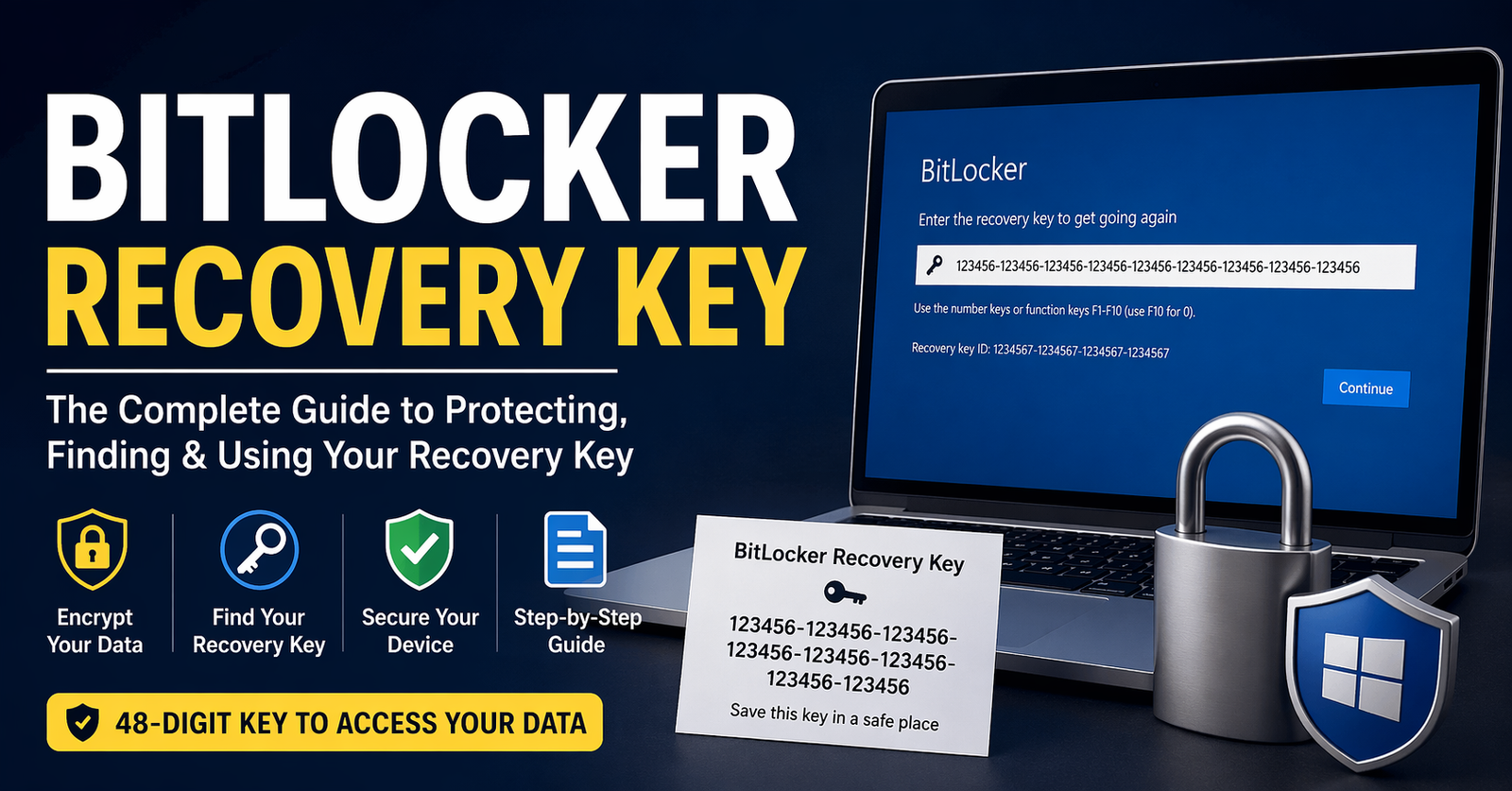
Have you ever turned on your laptop and suddenly been asked for a mysterious 48-digit code you’ve never seen before? That moment of panic is exactly when the bitlocker recovery key becomes the most important thing in your digital life.
I’ve personally dealt with locked drives, panicked clients, and even my own near-disaster when a Windows update triggered BitLocker unexpectedly. Trust me—if you don’t understand this feature, you’re one restart away from losing access to your files.
In this guide, I’ll break everything down in plain English. You’ll learn what a BitLocker recovery key is, why it exists, how to find it, and how to avoid common mistakes that can lock you out forever.
What Is a BitLocker Recovery Key? (Simple Explanation)
The bitlocker recovery key is a 48-digit numerical password that unlocks your encrypted drive when normal access fails.
Think of BitLocker like a high-security vault for your data. Normally, your Windows account acts as the key. But if something unusual happens—like a hardware change, BIOS update, or suspicious login—BitLocker locks the vault and asks for a backup key: the recovery key.
Why Does It Exist?
BitLocker (a built-in feature in Microsoft Windows) is designed to protect your data from unauthorized access. If your device is stolen or tampered with, the encryption prevents anyone from reading your files.
The recovery key exists because:
- Systems can fail
- Passwords can break
- Hardware can change
- Security triggers can activate
Without this key, even you (the owner) can lose access permanently.
Where Is BitLocker Used?
You’ll commonly find BitLocker on:
- Windows laptops (especially business devices)
- Company-managed PCs
- Devices linked to a Microsoft Account
- Systems using TPM (Trusted Platform Module)
Why the BitLocker Recovery Key Matters (Real-World Benefits)
Let’s be honest—most people ignore BitLocker until it’s too late. But when used correctly, it’s one of the best security tools available.
Key Benefits
- Data Protection: If your laptop is stolen, your data remains unreadable
- Automatic Encryption: Many devices enable it silently in the background
- Enterprise-Level Security: Used by businesses worldwide
- Peace of Mind: Your personal files stay private
Real-Life Use Cases
Here are situations where the recovery key becomes critical:
- After a Windows Update
- I’ve seen updates trigger recovery mode unexpectedly
- Hardware Changes
- Changing SSD, motherboard, or BIOS settings
- Forgotten Login Credentials
- BitLocker adds an extra layer of security
- Suspicious Activity Detection
- BitLocker may lock the drive automatically
Who Should Use BitLocker?
Best for:
- Professionals handling sensitive data
- Freelancers (like you doing client work)
- Business users
- Anyone concerned about privacy
Not ideal for:
- Users who don’t store recovery keys properly
- People unfamiliar with basic system management
How to Find Your BitLocker Recovery Key (Step-by-Step)
This is the most important section. If you skip everything else, don’t skip this.
Method 1: Microsoft Account (Most Common)
- Go to: https://account.microsoft.com/devices/recoverykey
- Sign in with your Microsoft account
- Locate your device
- Copy your recovery key
This works if your PC is linked to your Microsoft account.
Method 2: Check Your Email or Cloud Storage
Sometimes Windows automatically saves it to:
- OneDrive
- Email backup
- Company IT system
Method 3: USB Drive or Printed Copy
If you enabled BitLocker manually, you may have saved the key:
- On a USB drive
- Printed on paper
- Stored in a file
Method 4: Ask Your Organization (Work Devices)
If it’s a company laptop:
- Contact IT support
- Keys are usually stored in corporate systems
Pro Tips (From Experience)
- Always store your key in at least 2 places
- Use both cloud + offline backup
- Never rely on memory (it’s 48 digits!)
Tools, Comparisons & Expert Recommendations
Let’s talk about tools and options to manage BitLocker safely.
Built-in Tools
- BitLocker (Windows Built-in)
- Free with Windows Pro/Enterprise
- Easy to enable
- Reliable encryption
- TPM (Trusted Platform Module)
- Hardware-based security
- Works automatically
Alternatives to BitLocker
| Tool | Free/Paid | Best For | Notes |
|---|---|---|---|
| VeraCrypt | Free | Advanced users | More control, manual setup |
| DiskCryptor | Free | Tech users | Lightweight |
| BitLocker | Built-in | Most users | Easiest option |
My Honest Recommendation
If you’re using Windows:
Stick with BitLocker
Just properly store your recovery key
I’ve tested alternatives, but BitLocker is the most balanced in terms of ease + security.
Common Mistakes (And How to Fix Them)
This is where most people mess up—and regret it later.
Mistake 1: Not Saving the Recovery Key
Why it happens:
- Users skip setup steps
- Don’t understand importance
Fix:
- Save it in:
- Microsoft account
- USB
- Printed copy
Mistake 2: Saving It on the Same Locked Device
Problem:
- If the device locks, you lose access to the key too
Fix:
- Always store it externally
Mistake 3: Ignoring BitLocker Prompts
Problem:
- Windows warns you, but users ignore it
Fix:
- Take prompts seriously
- Backup immediately
Mistake 4: BIOS or Hardware Changes Without Preparation
Problem:
- Triggers recovery mode
Fix:
- Disable BitLocker temporarily before changes
Mistake 5: Using Work Device Without Understanding Policy
Problem:
- Key stored with company, not user
Fix:
- Ask IT where your key is stored
Step-by-Step: How to Enable BitLocker Safely
If you’re starting fresh, here’s the safest way:
- Open Control Panel
- Go to BitLocker Drive Encryption
- Click Turn On BitLocker
- Choose how to unlock (password or TPM)
- SAVE YOUR RECOVERY KEY (IMPORTANT)
- Choose encryption mode
- Start encryption
Best Practices
- Use strong passwords
- Backup recovery key in 2–3 places
- Avoid sudden hardware changes
- Keep system updated
Conclusion: Don’t Ignore the BitLocker Recovery Key
The bitlocker recovery key isn’t just a technical detail—it’s your last line of defense between you and permanent data loss.
From my real-world experience, the biggest issue isn’t BitLocker itself—it’s people not taking the recovery key seriously.
If you do just one thing after reading this:
Go find your recovery key right now and store it safely.
Because when your system locks, you won’t have time to figure it out.
FAQs About BitLocker Recovery Key
1. What is a BitLocker recovery key used for?
It’s used to unlock your encrypted drive when normal login methods fail.
2. Can I bypass the BitLocker recovery key?
No. Without the correct key, accessing the data is nearly impossible.
3. Where is my BitLocker recovery key stored?
Usually in your Microsoft account, USB drive, printed copy, or company system.
4. What happens if I lose my BitLocker recovery key?
You may permanently lose access to your data.
5. Is BitLocker enabled automatically?
Yes, on many modern Windows devices, especially when linked to a Microsoft account.
6. Can I disable BitLocker without a recovery key?
No. You need access to the system or recovery key.
7. Is BitLocker safe to use?
Yes. It’s one of the most secure encryption tools available for Windows.
8. How many digits is a BitLocker recovery key?
It’s a 48-digit numerical code.
9. Can I change my BitLocker recovery key?
Yes, you can regenerate a new one from settings.
10. Does resetting Windows remove BitLocker?
It may remove encryption, but data can still be inaccessible without the key.
CLICK HERE FOR MORE BLOG POSTS

Emily Carter is a tech enthusiast who writes about PC cooling, hardware performance, and system optimization. She enjoys simplifying complex topics and helping readers make better tech decisions.